School-day indie
A school band, warm rehearsal rooms and golden light create a nostalgic pop-video mood.
Choose the song range, model, and creative direction, with optional visual references. Production continues in the background.
Explore short excerpts from real music videos, from comic-book bands to watercolor worlds. Click any video to play a preview of up to 15 seconds.
A school band, warm rehearsal rooms and golden light create a nostalgic pop-video mood.
A cartoon band bursts through bold yellow backgrounds, graphic textures and playful cuts.
Colorful knitwear, painted backdrops and on-screen lyrics give this performance a handmade feel.
A singer moves through a flower-filled corridor in soft light and intimate close-ups.
Braided hair, sculptural styling and a dark studio keep the focus on the performer.
Oversized typography, repeated figures and punchy poses turn a room into a moving collage.
Coastal views, coffee cups and turning sketchbook pages unfold in soft watercolor.
A stylized singer and cinematic city scenes build a richly detailed science-fiction world.
A white-haired swordswoman, a glowing blade and a red eclipse create an anime fantasy.
Two figures travel through swirling color, reflective landscapes and painterly skies.
Flowing fabric, floating sculpture and flooded galleries form a surreal fashion story.
Intimate vocals, soft daylight and yellow lyric captions give a fictional band a familiar feel.
A steam train crosses star-filled skies and moonlit scenery in a storybook animation.
A music video generator takes a finished track and builds moving visuals around it. SongScene uses the same complete generation process for short clips and full songs.
SongScene starts from your audio and scene brief. Your reference images, visual style, aspect ratio, resolution, and caption settings guide resource preparation, music analysis, storyboard planning, video generation, and final composition. Short clips and full songs follow the same process. After generation, open the project in Canvas to work on individual shots.
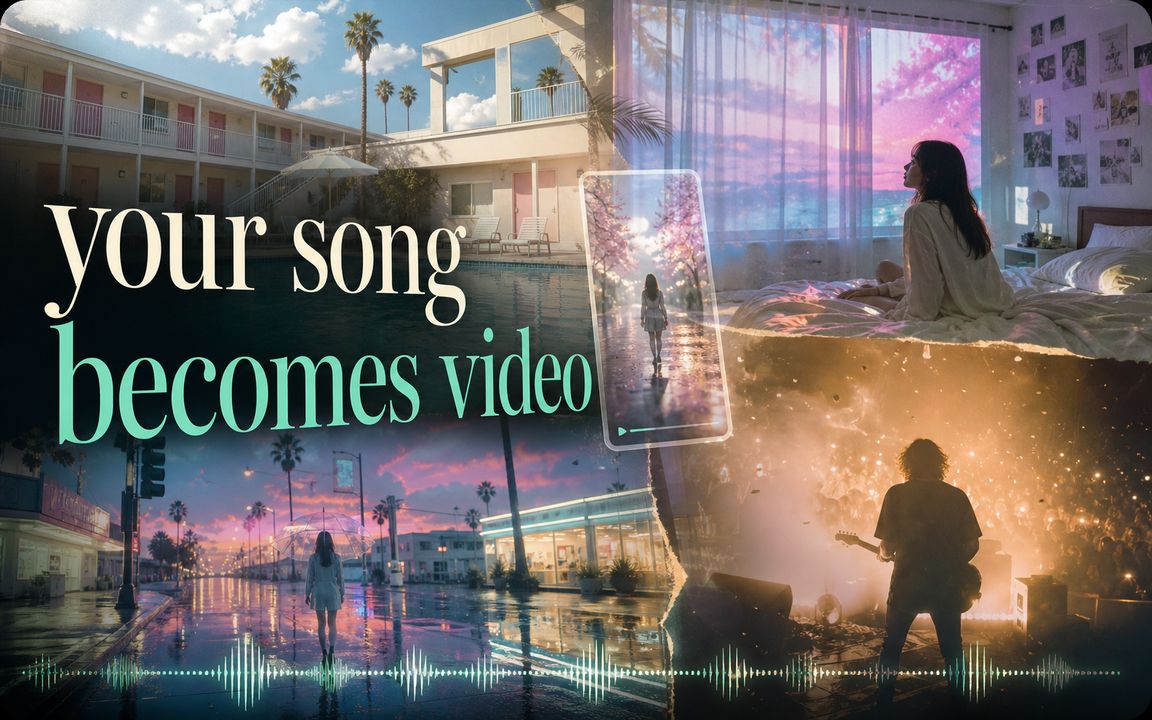
SongScene fits the moments where you want to see and ship a music video without booking a crew or opening a timeline.
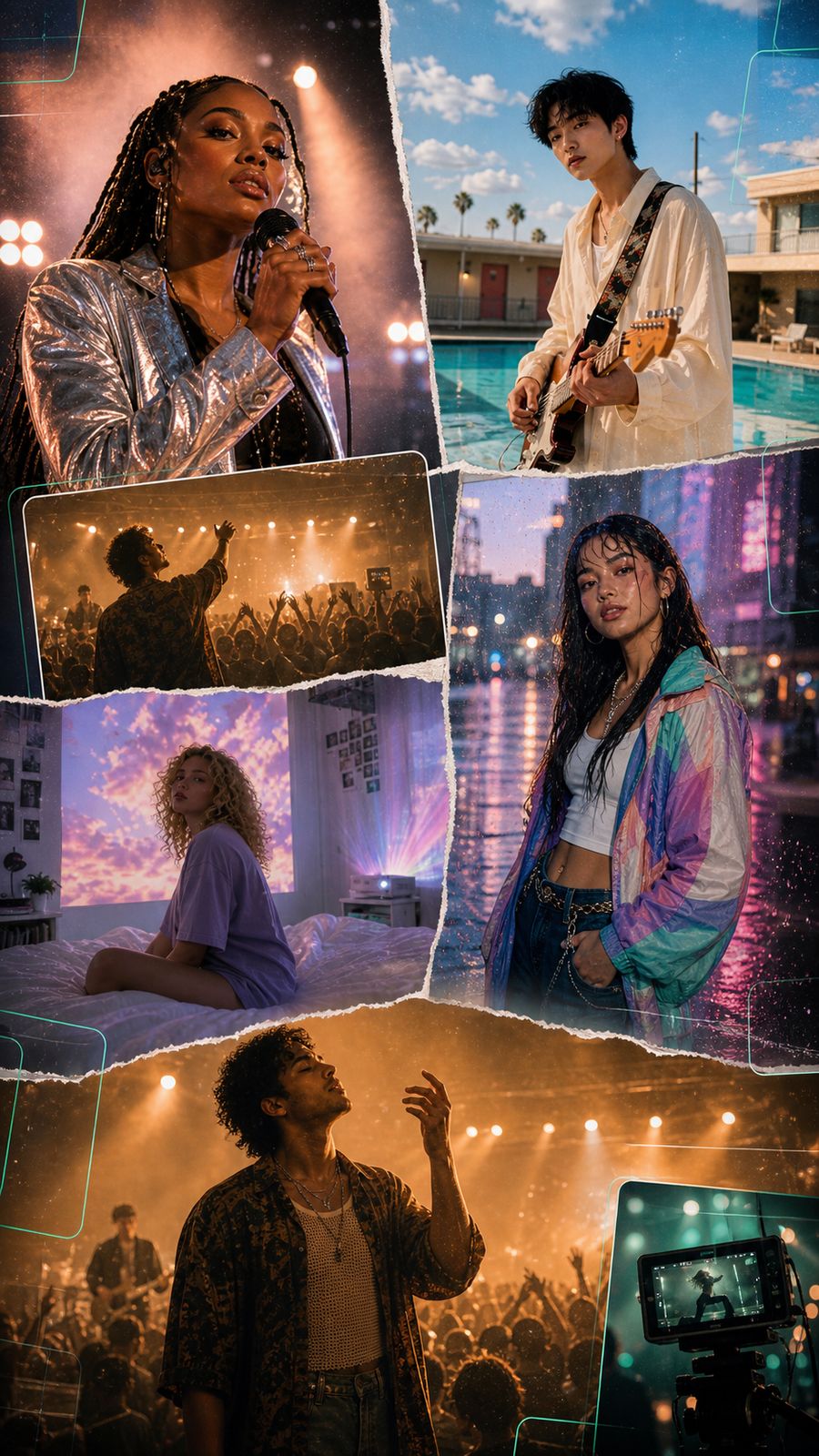
Turn a finished track into a 9:16 vertical music video with several scenes ready for Reels, TikTok, Shorts, and teaser drops.
Build a vertical clip around the chorus or drop, with captions baked in, ready to post to TikTok and Reels.
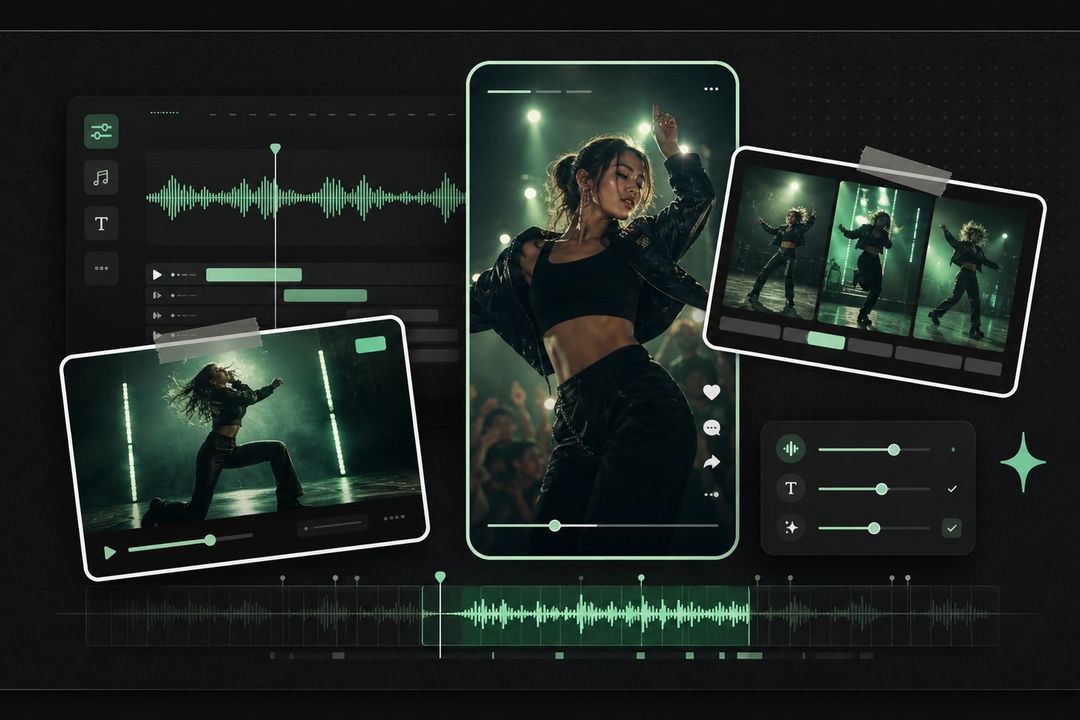
Bring an AI-generated song straight into video instead of exporting the audio and starting over in another tool.
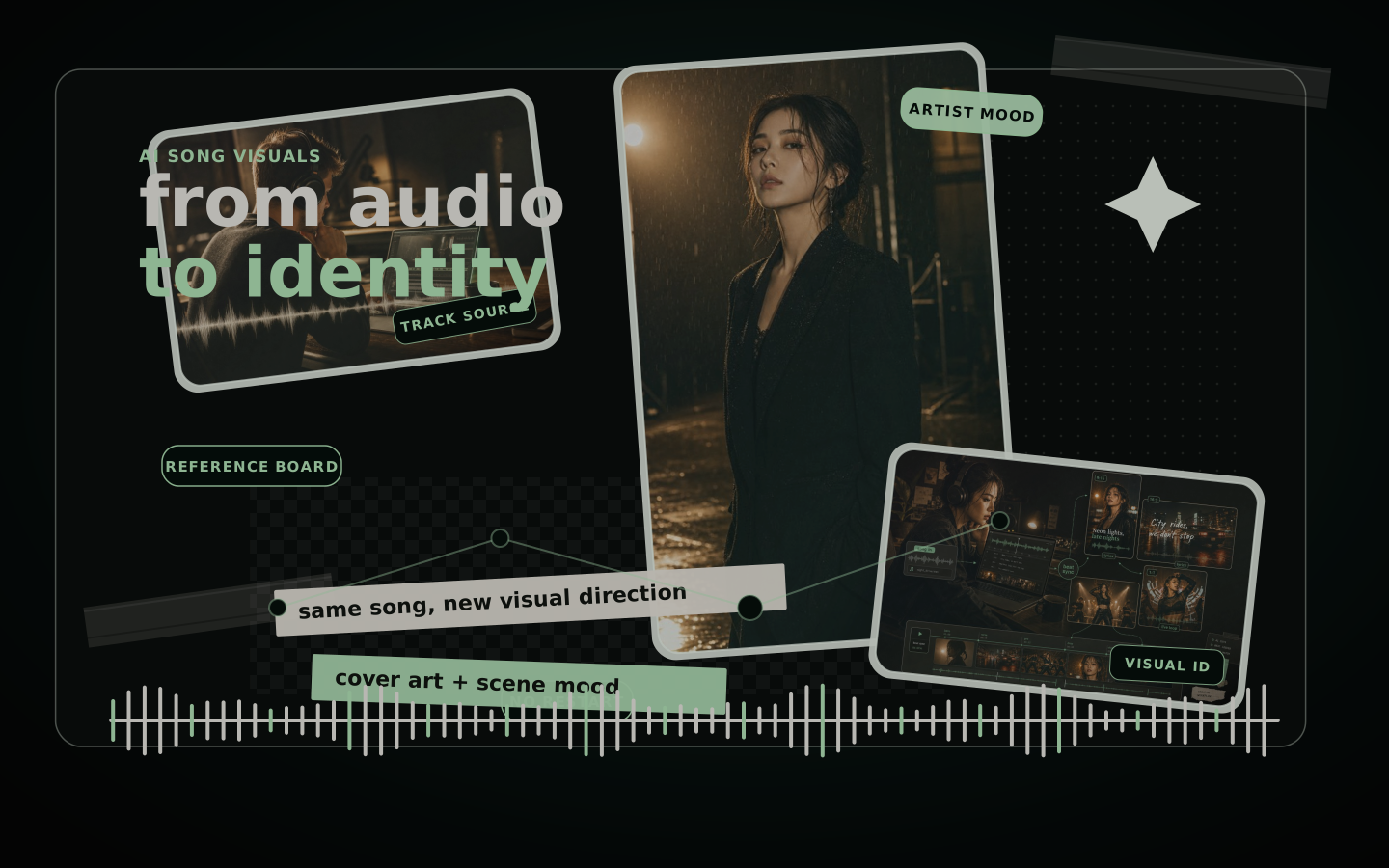
Three steps from a track to a finished clip — SongScene handles the render in the background while you do something else.
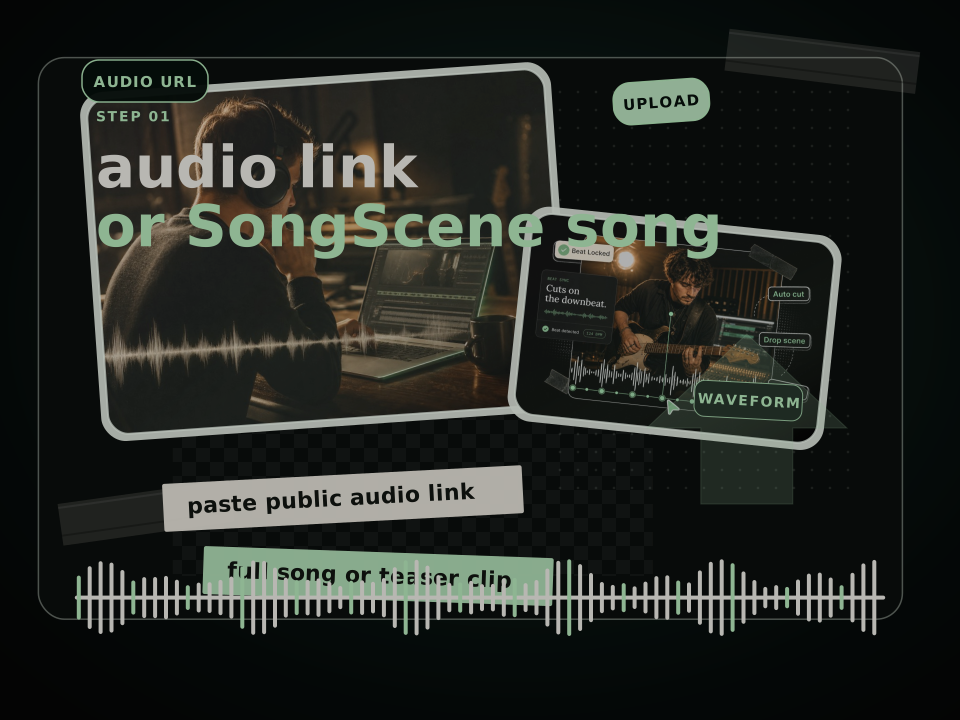
Generate a song in SongScene or paste a public audio link to your own. A short clip works for a teaser; a full song works for a release video.
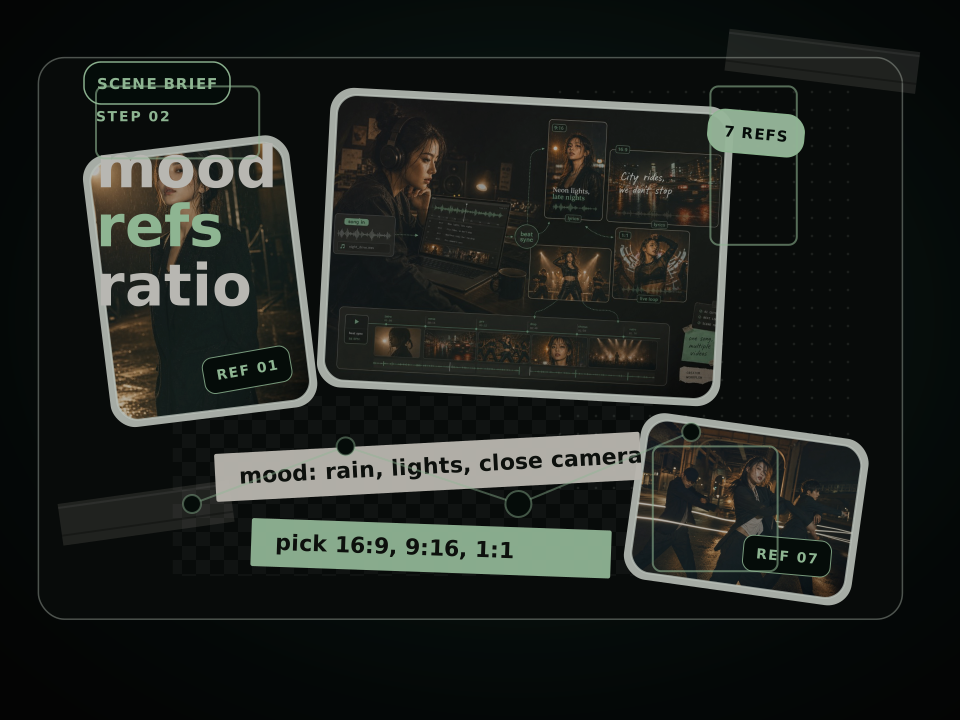
Describe the mood, scene, and shot you want, add up to seven reference images, pick the platform ratio and resolution, and choose whether to burn in captions.
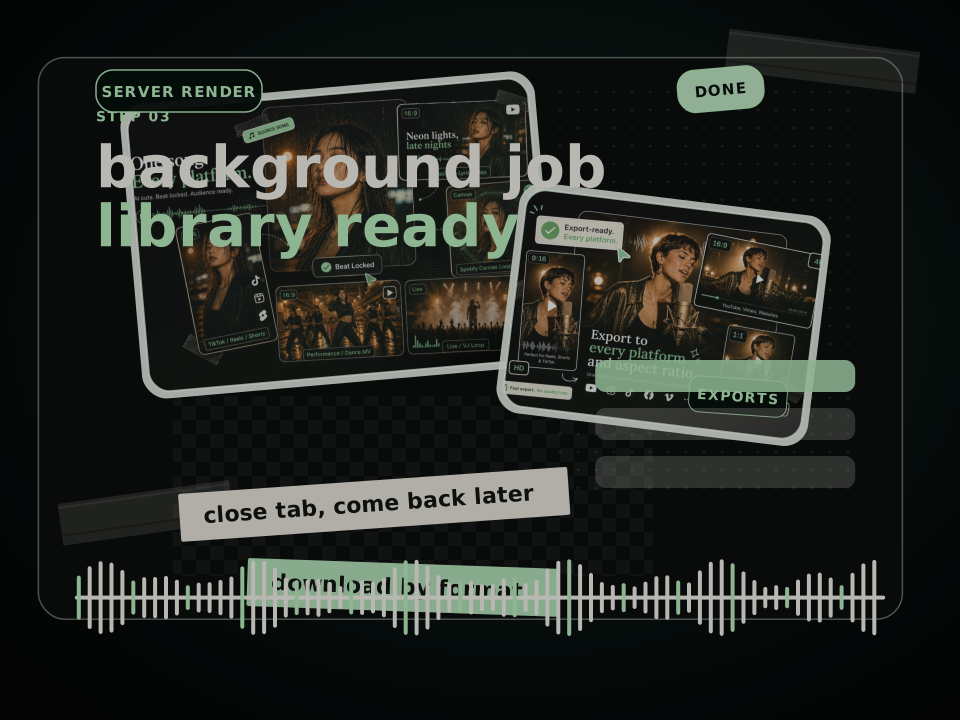
Start the job and keep working — SongScene renders in the background, then drops the finished video into your library to download or post by format.
SongScene keeps the controls tight: the few decisions that actually change a music video, and nothing else to wire up.
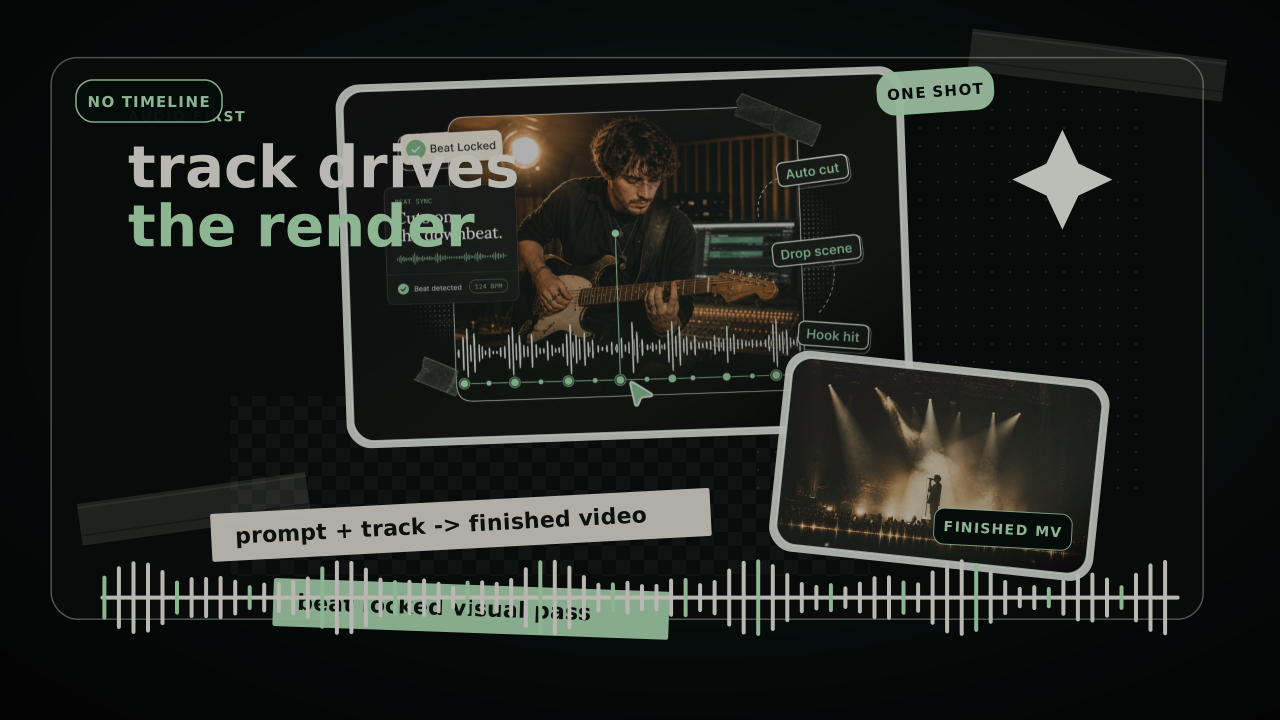
Provide a track and a prompt. SongScene prepares the visual references, plans the shots, generates the video clips, and assembles the finished music video.
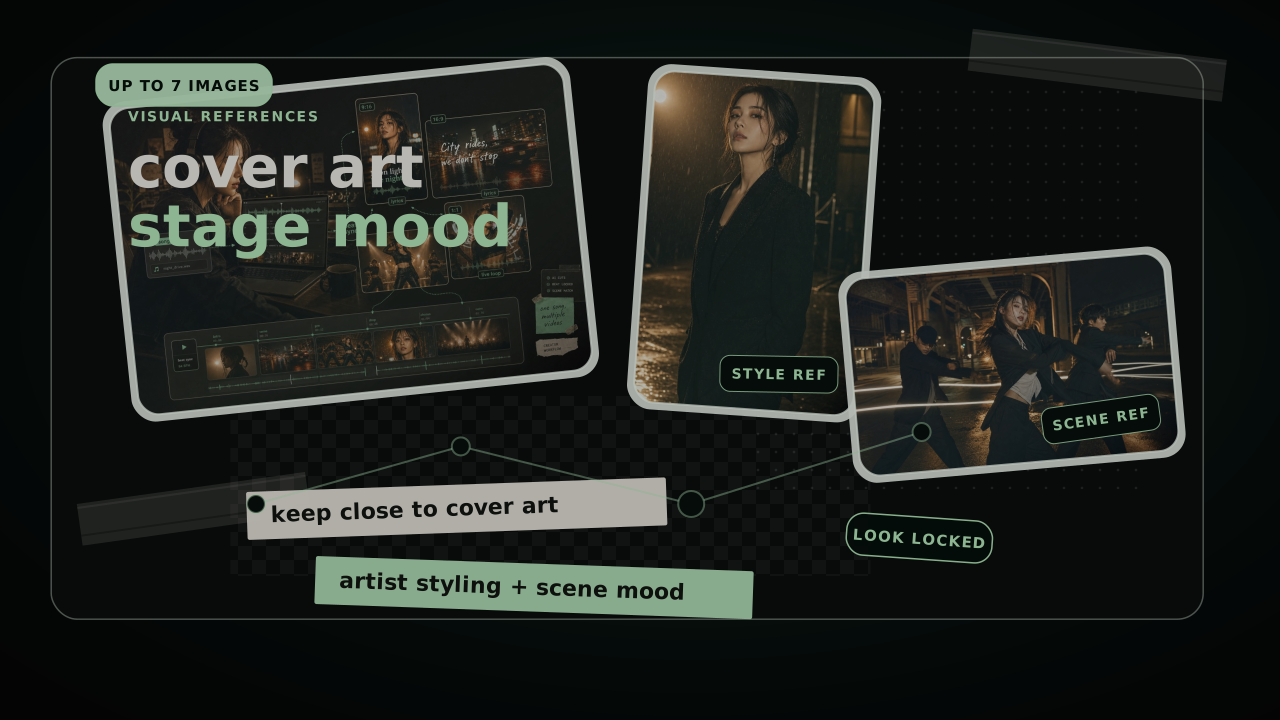
Add up to seven reference images so the look stays close to your cover art, artist styling, or scene mood.
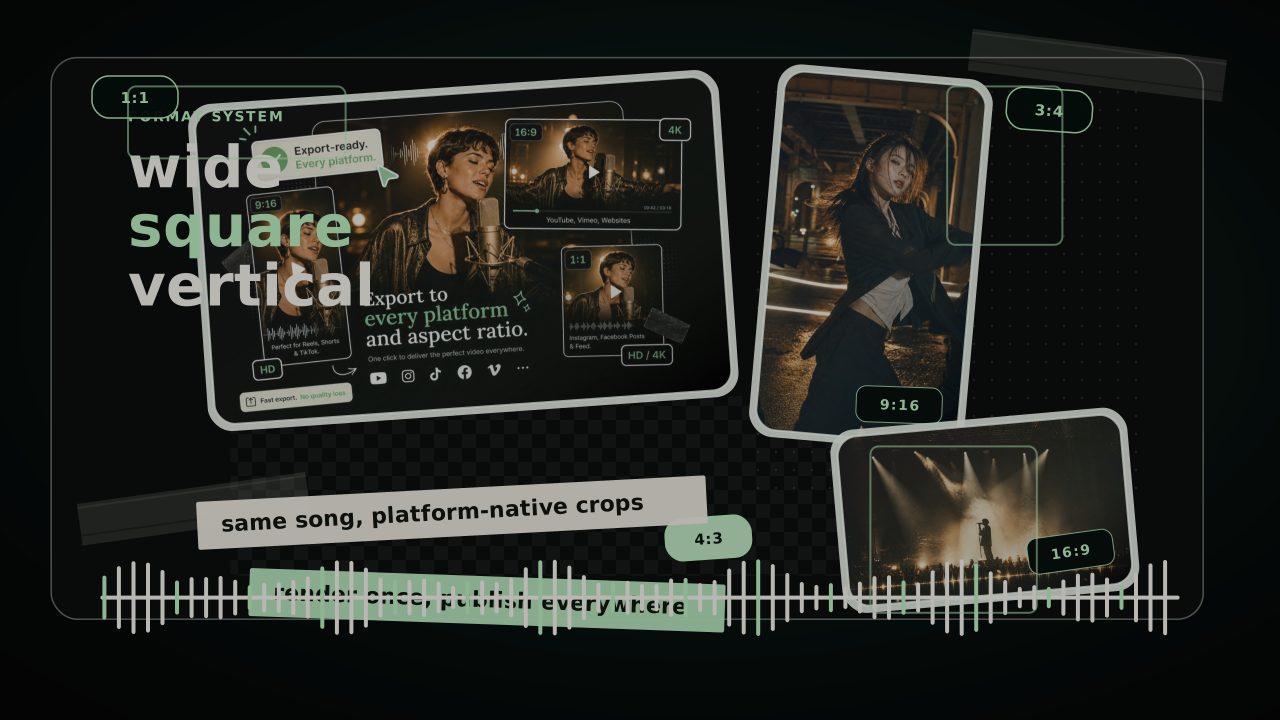
Render 1:1, 16:9, 9:16, 4:3, or 3:4 from the same track, so one song becomes a wide MV, a vertical hook, and a square loop.
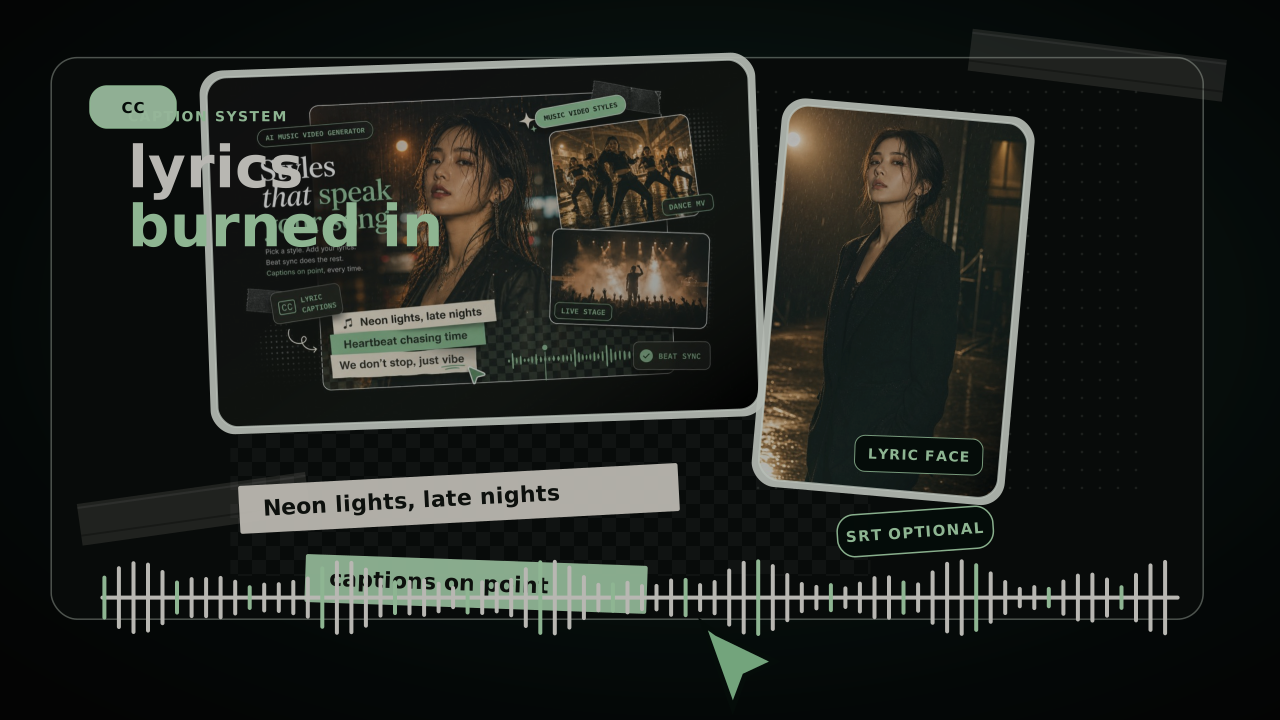
Turn on generated subtitles with no SRT file, or pass an SRT link when your lyric timing is already set.
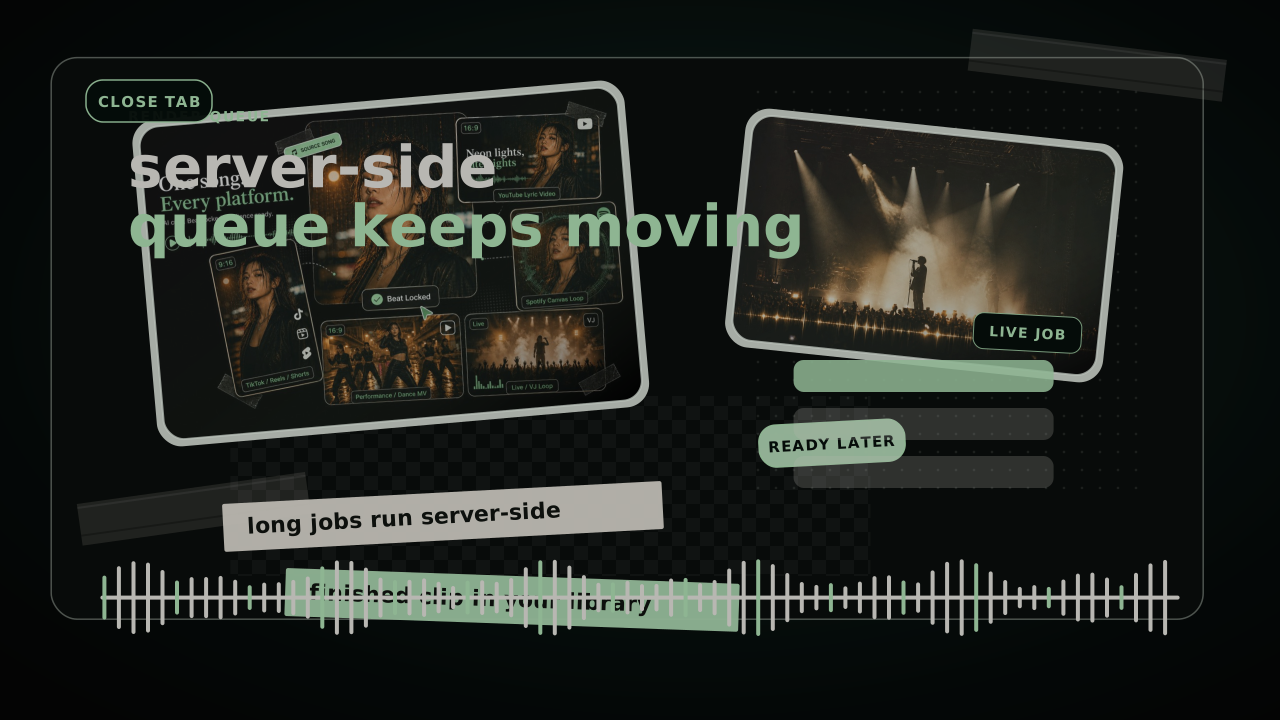
Long jobs run server-side, so you can close the tab and come back — the finished clip is waiting in your library when it's done.
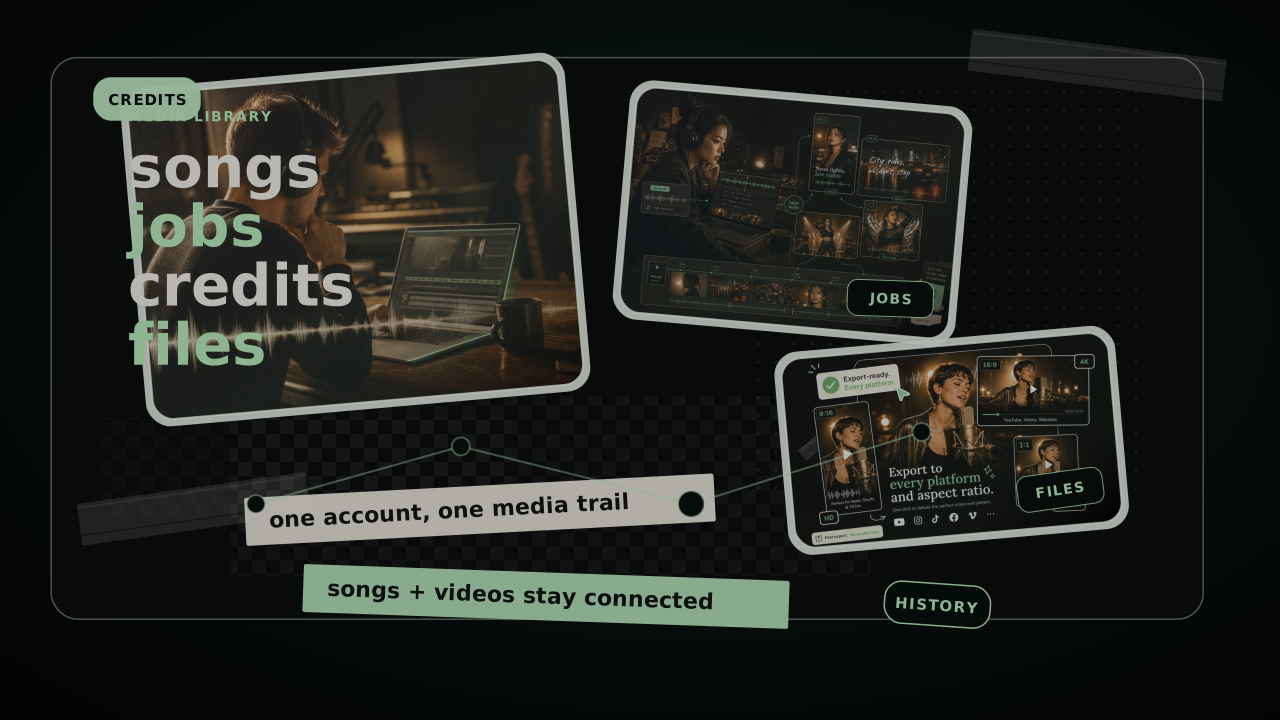
Songs, video jobs, plan usage, and finished files share the same SongScene account, history, and media library.
SongScene runs in the background, preparing references, analyzing the music, planning shots, generating clips, and composing the finished video.
SongScene validates your track, prompt, reference images, ratio, resolution, and caption settings before anything starts rendering.
SongScene uses your audio, prompt, reference images, and format settings to plan the shots and generate the required video clips.
The job runs server-side without holding up your session, and SongScene tracks it through to completion.
Real workflows where the track is already done and the next step is just getting it on screen.
For a single, I need the chorus clip and the full YouTube cut to share one look. Starting from the track keeps both versions consistent without re-briefing.

Picking the ratio before it renders is the part I use most. I get a 16:9 visualizer and a 9:16 teaser from the same song in one sitting.

Captions matter on Reels, and asking for them in the same brief saves a whole separate pass. The vertical clip comes back ready to post.

I feed it reference images from the artwork and the stage look holds up. The video feels built around the song instead of pasted behind it.

I can test a demo, write one line of direction, and decide whether a track is worth a full video before I spend money on anyone.

Release week means one track needs a vertical hook, a square preview, and a wide MV. Doing all three in one place cuts the handoff time.

SongScene
Bring a song, write one line of scene direction, pick your format, and let SongScene render it — start to finished clip, all inside SongScene.